Create an Advanced Event
Before we begin
Enable Guided Access on your iPhone/iPad. This keeps your guests within the Mini Photobooth app so they don't accidentally open other apps. Here is Apple's guide for how to enable Guided Access on your iPhone/iPad: https://support.apple.com/en-us/111795

Step 1
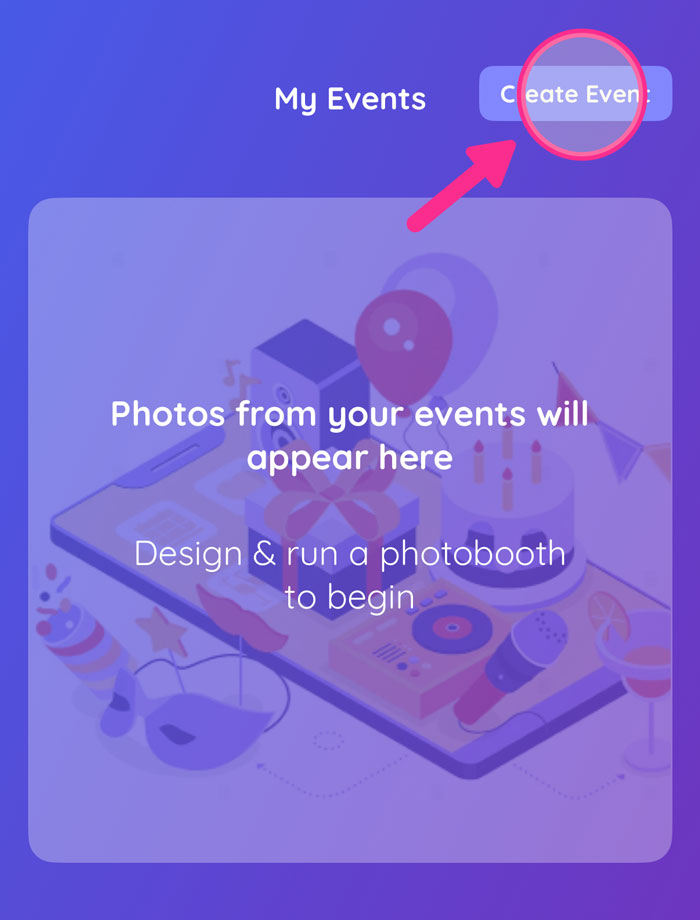
Go to the Events tab, and tap Create Event.
Step 2
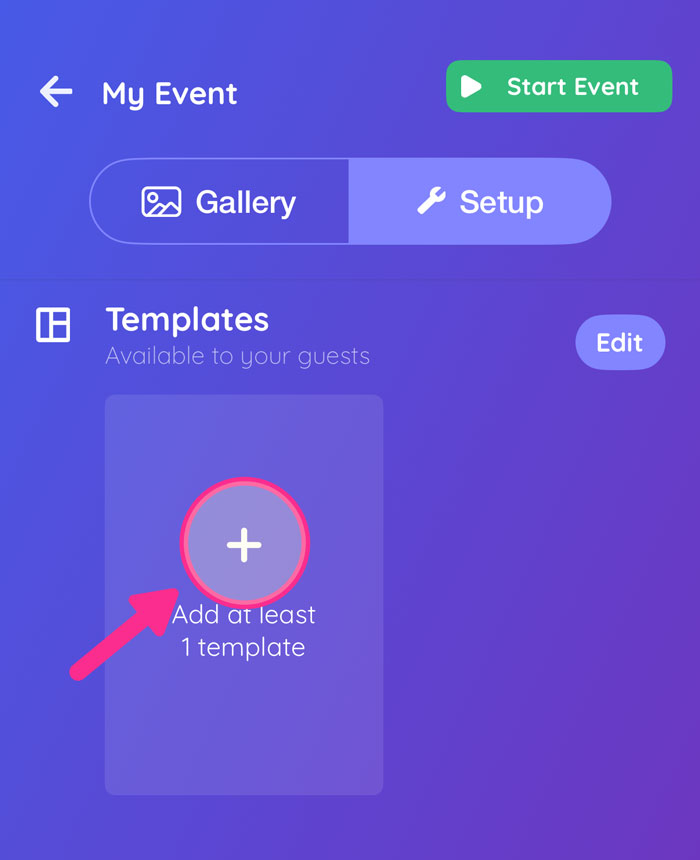
Tap to Add a template.
Step 3
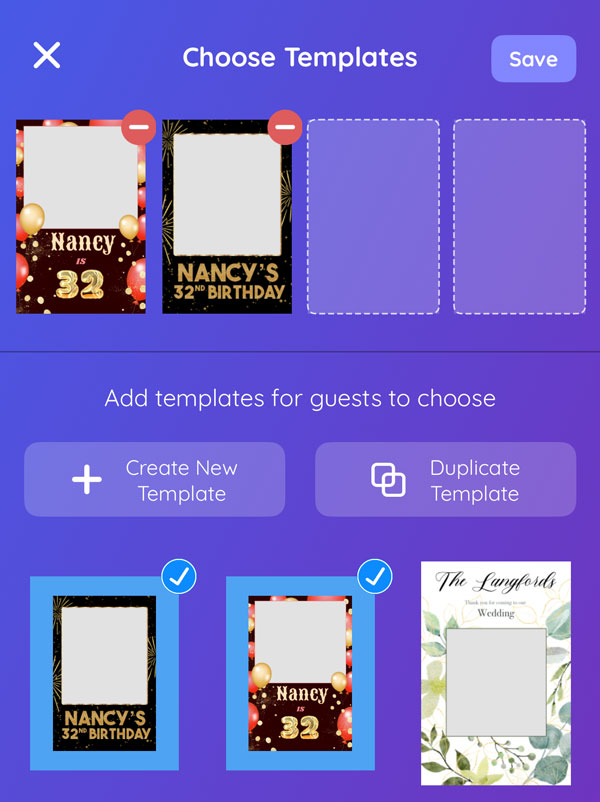
Add 1 or more templates you want guests to choose from. Tap Save.
Step 4
Optional: Add a Custom Start Screen. This is a welcome screen that displays before the camera screen.

Step 5
Design your custom start screen.

Step 6
Optional: Tap Customize Camera Screen, then Custom Start Button, if you'd like to browse or select a new start button.


Step 7
Turn on Guest Stickers and select the ones you like.
Step 8
This lets your guests put on stickers after they take their pictures. Press Save when you're done.
Step 9
Press Start Event, and start your event in Event Mode.
Step 10
In the camera screen, guests can choose which template they want to use.
Step 11
After taking their pictures, guests can print or share their photos.
Step 12
And you're done!